 Yuzudesk
How-to guides / Track monthly income
How to track monthly income
Goal: see what you were paid each month, what's still owed, and what you kept after expenses.
Money counts a payment on the day it's paid, before sales tax. So the first part is recording payments as they land. The second part is reading them on the Money page.
Part 1: Record money when it arrives
-
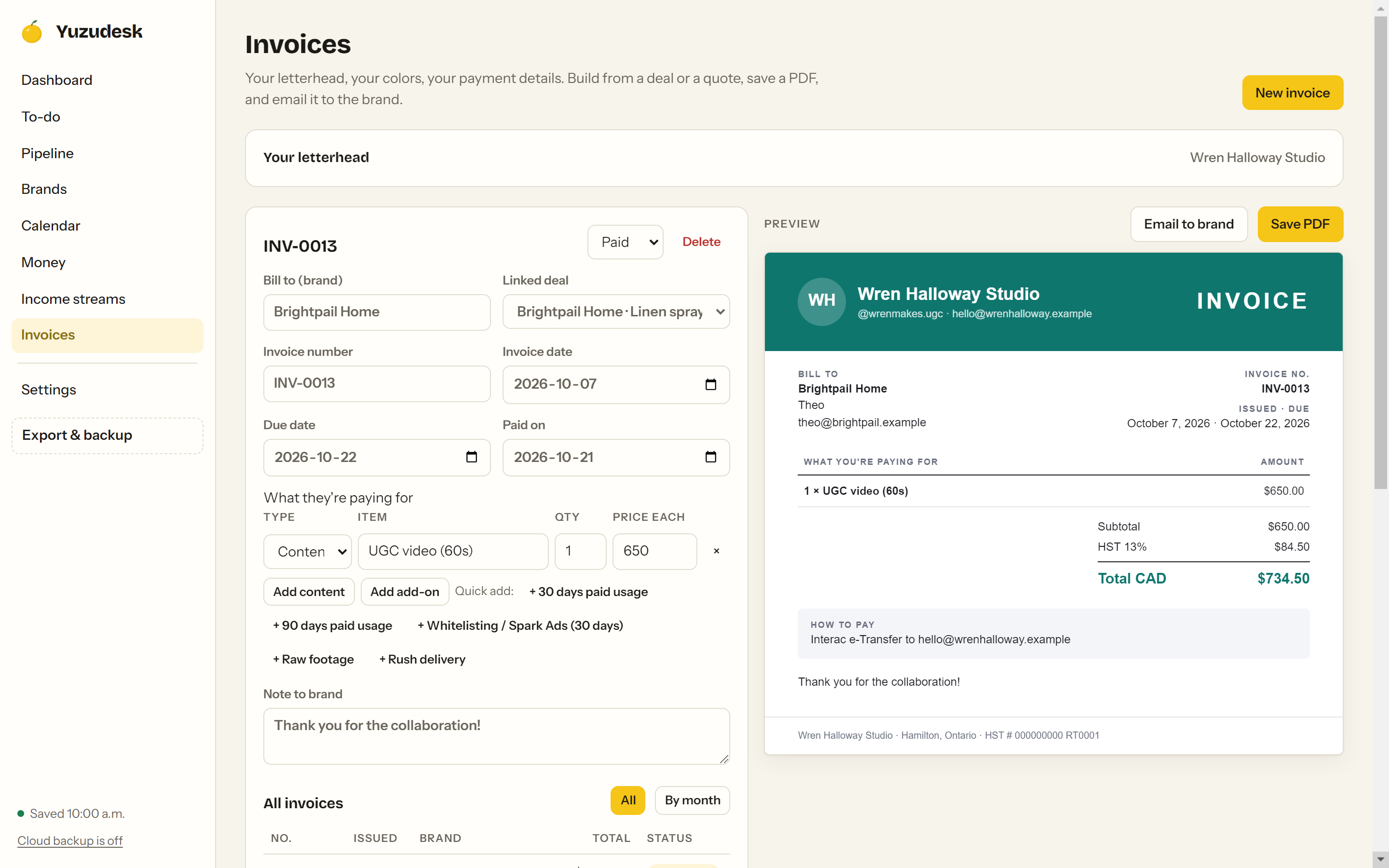
A brand paid an invoice. Go to Invoices and click the invoice in the list. In the status menu next to the invoice number, change Sent to Paid. A Paid on date appears, set to today. Change it if the money arrived on a different day. If the invoice is linked to a deal, the deal is marked paid too.
-
A brand paid a deal you never invoiced. Go to Pipeline. In the Invoiced column, tick Paid on the deal's card. To set a different date, open the deal, click Dates & reminders and change Paid on.
-
Money from outside brand deals (affiliate commissions, digital products, courses, creator funds). Go to Income streams and click Add income. Pick the Stream (Affiliate, Digital products, Courses & coaching or Other), then fill in Source, What, Amount (before platform fees), Platform fees and Date. Tick The money has arrived, then click Save.
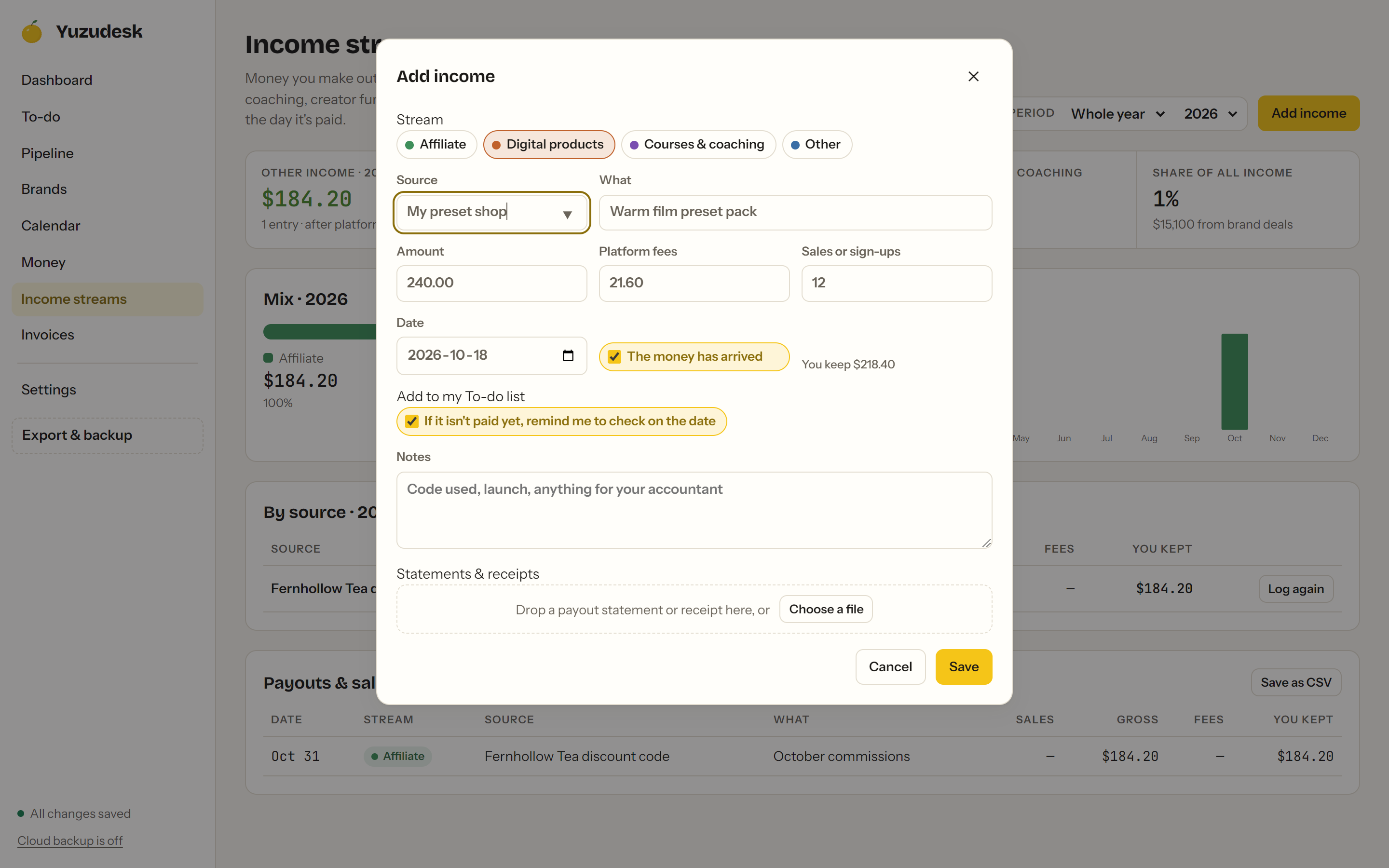
Logged a payout that hasn't landed yet? Leave The money has arrived unticked. When it arrives, click Mark paid next to it on the Income streams page.
-
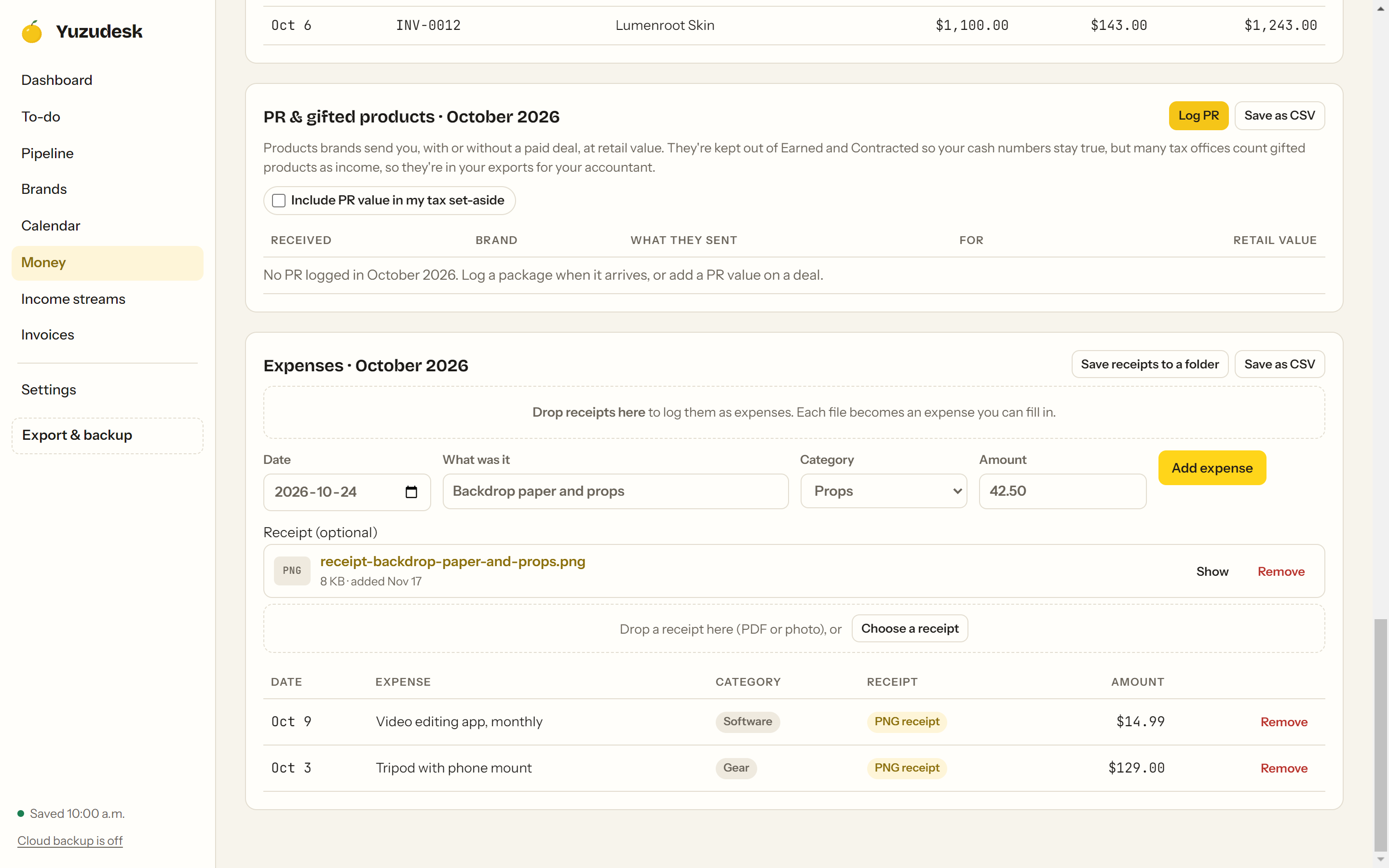
Expenses. On the Money page, scroll to Expenses. Fill in Date, What was it, Category and Amount, then click Add expense. You can also drop receipt files on the box that says Drop receipts here. Each file becomes an expense you can fill in.
Part 2: Read your month
-
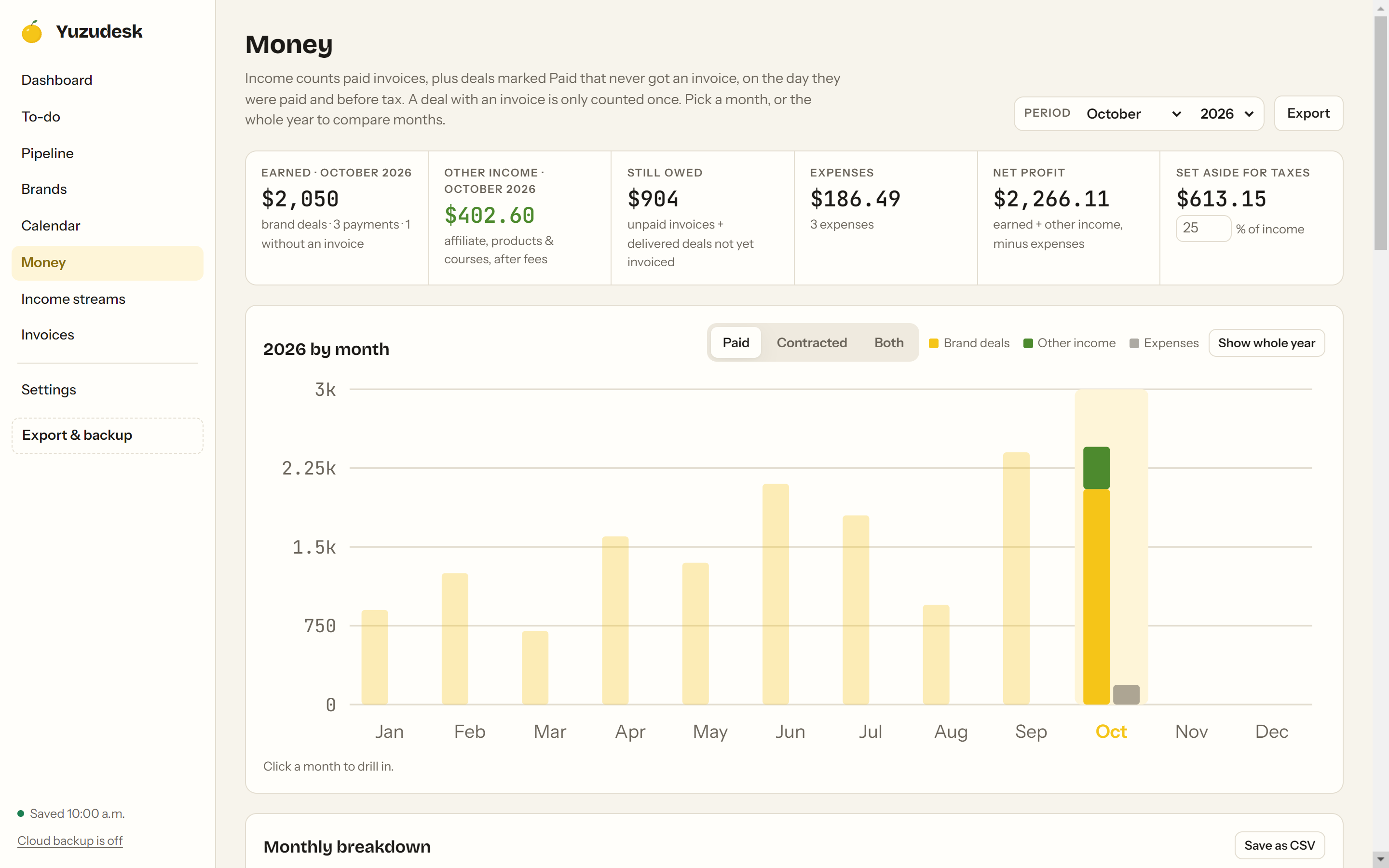
Click Money in the sidebar. Next to Period at the top, pick the month in the first menu (it starts on Whole year) and the year in the second.
-
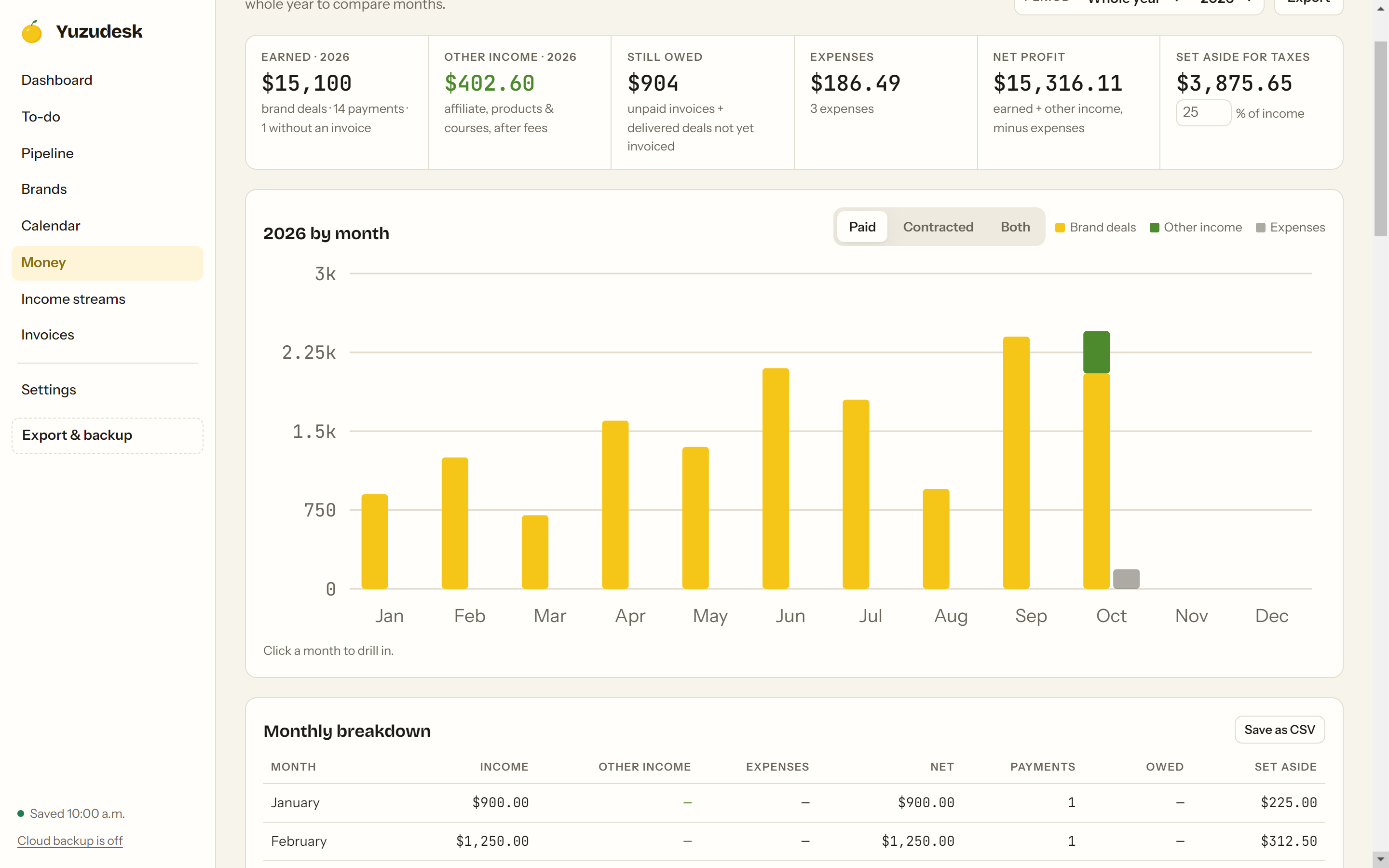
The cards at the top show that month:
- Earned: brand deal income paid that month, before tax.
- Other income: your Income streams, after platform fees.
- Still owed: unpaid invoices, plus delivered deals not invoiced yet.
- Expenses, Net profit (earned plus other income, minus expenses) and Set aside for taxes.
-
To compare months, set the month back to Whole year. The chart shows each month's income and expenses. Click any month's bars to jump to that month. Click Show whole year to go back.
-
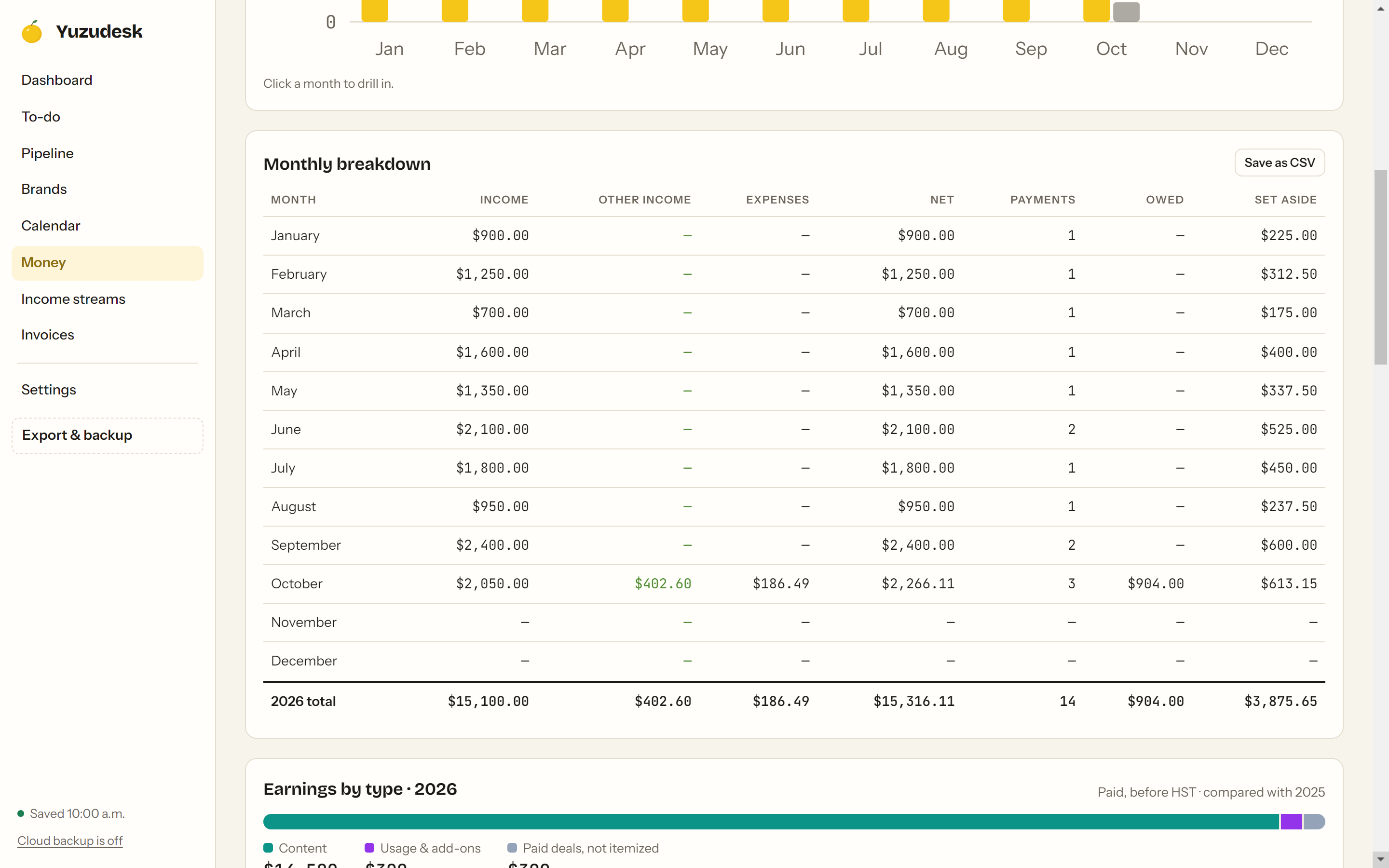
Scroll to Monthly breakdown for the same numbers as a table: income, other income, expenses, net, number of payments, owed and set-aside for each month, with a total row. Click Save as CSV to keep a copy.
-
Further down, Income lists every payment in the period: date paid, invoice number (or "Deal, no invoice"), brand, subtotal, tax and total.
Tips
- Contracted vs paid. To see deals you won in a month, paid or not, click Contracted or Both above the chart. Contracted counts a deal in the month of its Start date.
- No double counting. A deal with a paid invoice is counted once, through the invoice.
- PR and gifted products are shown at retail value and kept out of Earned, so your cash numbers stay true.
- Your year doesn't start in January? Set Fiscal year starts in under Settings. Money's yearly totals follow it.
- Earnings by brand and Income by source, lower on the Money page, show who paid you most and where those deals came from.